Every Option in Chirpy's _config.yml, Explained
A beginner-friendly, field-by-field walkthrough of every option in the Chirpy Jekyll theme's _config.yml file — what it does, whether you need to change it, and the gotchas nobody warned you about.
TL;DR — Your
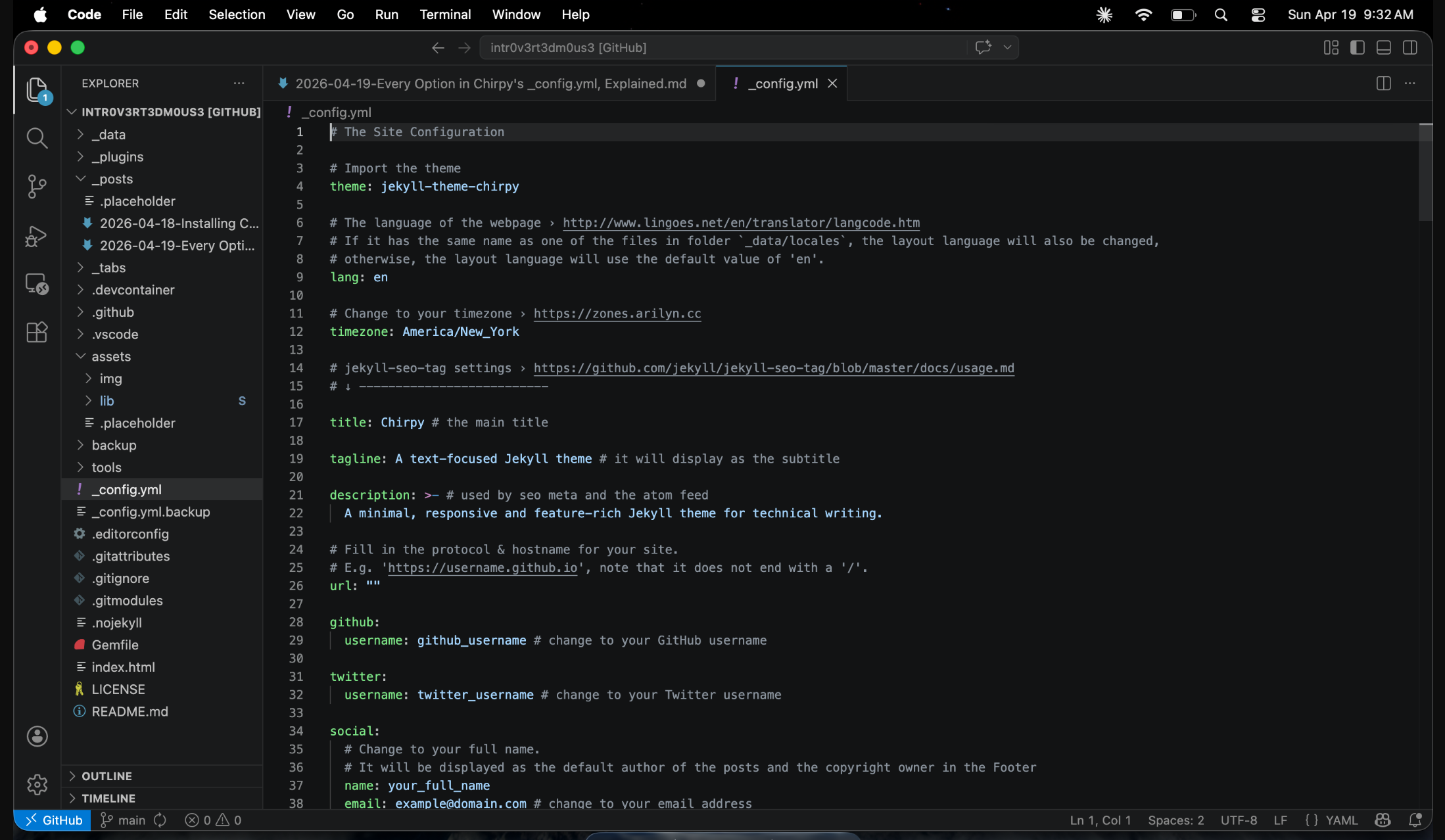
_config.ymlis the control panel for your entire Chirpy site. For a brand-new install, you really only need to touch about seven fields:title,tagline,description,url,github.username,social.name,social.email, andavatar. Everything else has sane defaults. This post walks through every single field — grouped into digestible sections — so you can make informed choices as you grow, and skip the ones you don’t care about without worrying you’ve missed something important. This guide is current for Chirpy v7.5.0 (released March 15, 2026).
 yml
yml
Why this post exists
In the previous post we got Chirpy up and running on GitHub Pages with a Cloudflare-proxied custom domain. If you followed along, you now have a live blog, a working Actions workflow, and one slightly intimidating file sitting in the root of your repo: _config.yml.
It’s roughly 140 lines. It has nested YAML, commented-out sections, provider-specific blocks, and strings like G-XXXXXXXXXX that mean nothing until you know where they come from. That’s what we’re fixing today.
Think of _config.yml as the single source of truth for your site’s identity, behavior, and integrations. Jekyll reads it once at build time and threads its values through every template. Change a field, push, wait for Actions, and the whole site updates. The good news: the Chirpy starter ships with values that just work. You can get a beautiful blog online while only changing a handful of them. The rest of this post is a reference — skim the “absolute minimum” section to launch, then come back later for the deep dive when you’re ready to add analytics, comments, or SEO verification.
This post targets the chirpy-starter layout, which is the recommended installation path. If you forked the theme directly, the file is almost identical but lives in a slightly different repo structure.
The absolute minimum you should change
If you read nothing else, change these fields and you’re done:
1
2
3
4
5
6
7
8
9
10
11
12
13
14
15
title: Your Site Name
tagline: A short, punchy subtitle
description: >-
  One or two sentences describing your blog. This shows up in search
  engine results and social share cards.
url: "https://yourdomain.com"
github:
  username: your-github-handle
social:
  name: Your Full Name
  email: [email protected]
  links:
    - https://github.com/your-github-handle
    - https://twitter.com/your-twitter-handle
avatar: /assets/img/avatar.jpg
That’s it. Drop an avatar.jpg into assets/img/, commit, push, and your sidebar, browser tab, OpenGraph cards, and footer will all reflect your identity. Everything below this section is for when you want to go further.
Core site identity
These fields shape the basic “who and what” of your site.
theme
1
theme: jekyll-theme-chirpy
This tells Jekyll which gem to load as the theme. Don’t change this unless you’re forking and renaming the theme yourself. The chirpy-starter keeps this as a remote gem so that running bundle update jekyll-theme-chirpy pulls in new releases cleanly.
lang
1
lang: en
A BCP 47 language code. Set it to match your content’s primary language (en, zh-CN, ja, de, fr, pt-BR, and so on). Chirpy does two things with it: first, it sets <html lang="..."> for accessibility and SEO; second, if your code matches a file name in the theme’s _data/locales/ directory (like en.yml, zh-CN.yml, de-DE.yml), the UI strings — “Home”, “Posted”, “min read”, “Further Reading” — are automatically localized.
If you set
lang: fr-CAbut there’s nofr-CA.ymlin_data/locales/, Chirpy falls back to English UI labels. Either use a code that exists, or copy an existing locale file and translate the handful of strings inside.
timezone
1
timezone: America/New_York
A TZ database name. This governs how post dates render, how “last updated” timestamps are computed, and how scheduled posts (posts with a future date:) are handled. Use your local zone — Europe/London, Asia/Tokyo, America/Chicago, Australia/Sydney, etc. A browsable list lives at zones.arilyn.cc if you don’t want to dig through Wikipedia.
Setting the wrong timezone is the #1 reason posts “disappear” locally but work on GitHub Pages: you set a date of today at 5pm in local time, but build in UTC, and Jekyll thinks the post is in the future.
title, tagline, description
1
2
3
4
title: Chirpy
tagline: A text-focused Jekyll theme
description: >-
  A minimal, responsive and feature-rich Jekyll theme for technical writing.
These are your public-facing identity. title appears in the sidebar, the browser tab, and the footer. tagline sits directly under the title in the sidebar — keep it short, one line ideally. description powers your site’s <meta name="description"> tag, the default OpenGraph description, and the feed metadata. The >- is YAML’s “folded block scalar with strip”: newlines in the source become spaces, and trailing newlines are trimmed. Aim for 150–160 characters in description to keep Google from truncating it in search results.
URLs and hosting
Getting these wrong breaks feeds, sitemaps, and social share cards. Get them right once and forget they exist.
url
1
url: "https://blog.example.com"
The absolute base of your deployed site — protocol, hostname, no trailing slash. This string gets prefixed onto every absolute link Jekyll generates: the RSS feed URLs, the sitemap.xml entries, the og:url meta tag, canonical links, and the full URLs embedded in social share buttons. If you leave it as "", your feed will be full of broken links and Google Search Console will complain. Set it to whatever domain your live site answers on — the GitHub Pages default (https://username.github.io) or your custom domain.
baseurl
1
baseurl: ""
Leave it empty if your site lives at the root of a domain (https://example.com/). Set it to a path like /blog if your site is deployed under a subpath (https://example.com/blog/). This is common for project sites on GitHub Pages where the URL is https://username.github.io/project-name/ — in that case you’d set baseurl: "/project-name". The value must start with a slash and must not end with one.
paginate
1
paginate: 10
Number of posts per page on your homepage. The jekyll-paginate plugin walks through _posts/ in reverse chronological order and splits them into pages of this size. Ten is a reasonable default; bump it to 15–20 if your posts are short, or lower it if your homepage already feels busy.
Author and social identity
Chirpy’s sidebar has a social icons row at the bottom. These fields feed it.
github and twitter usernames
1
2
3
4
github:
  username: your-handle
twitter:
  username: your-handle
Handles only — no @, no full URL. Chirpy wraps them in the correct link template for each platform and uses them in several places, including the jekyll-seo-tag output that populates Twitter card metadata (twitter:creator).
social.name, social.email
1
2
3
social:
  name: Your Full Name
  email: [email protected]
social.name becomes the copyright holder in the footer and the author byline on every post. social.email is used for mailto: links and for the Atom feed’s <author> element. If you’re worried about scrapers, use an alias address you can shut off — plain text emails in a public _config.yml will get harvested.
social.fediverse_handle
1
2
social:
  fediverse_handle: "@[email protected]"
Added to support the fediverse:creator meta tag, which Chirpy v7.5.0 shipped on March 15, 2026. Mastodon and other fediverse clients read this tag to attribute links back to your account. The format is the full @[email protected] — leading @, server separator, both parts required. Leave it blank if you’re not on the fediverse.
social.links
1
2
3
4
5
6
social:
  links:
    - https://github.com/yourhandle
    - https://twitter.com/yourhandle
    - https://www.linkedin.com/in/yourhandle
    - https://mastodon.social/@yourhandle
A list of full URLs that get surfaced as structured data (schema.org sameAs) and fed into the jekyll-seo-tag author object. The first URL in the list is treated as the canonical “copyright owner” link in the footer, so put your primary profile there.
SEO and webmaster verification
webmaster_verifications
1
2
3
4
5
6
7
webmaster_verifications:
  google:    # Google Search Console token
  bing:      # Bing Webmaster Tools token
  alexa:     # retired
  yandex:    # Yandex Webmaster token
  baidu:     # Baidu Ziyuan token
  facebook:  # Facebook domain verification token
Each field takes the verification string (not the full HTML tag) issued by the respective service. jekyll-seo-tag renders them as <meta name="google-site-verification" content="..."> and equivalents in the <head>. Alexa is effectively dead — Amazon retired the Alexa.com ranking service in May 2022 — so you can safely ignore that field forever. The rest are only useful if you actually plan to submit your site to those specific search engines. For most English-language blogs, Google plus maybe Bing is enough.
social_preview_image
1
social_preview_image: /assets/img/og-default.png
The default og:image used when a post has no image: in its front matter. Recommended size is 1200×630 pixels. This is what shows up as the big preview when someone pastes your URL into Slack, Discord, Twitter, LinkedIn, or Messages. A missing or tiny image here is the single most common reason a shared link looks terrible — fix it once, benefit forever.
Analytics providers
Chirpy natively supports six analytics providers. You configure at most one (usually), paste in the ID, and Chirpy injects the tracking snippet on every page. Here’s the whole block:
1
2
3
4
5
6
7
8
9
10
11
12
13
14
15
16
17
18
analytics:
  google:
    id:
  goatcounter:
    id:
  umami:
    id:
    domain:
  matomo:
    id:
    domain:
  cloudflare:
    id:
  fathom:
    id:

pageviews:
  provider:
Google Analytics 4
1
2
3
analytics:
  google:
    id: G-XXXXXXXXXX
GA4’s Measurement ID starts with G- followed by 10 alphanumeric characters. Find it under Admin → Data Streams → your web stream → Measurement ID. The old Universal Analytics UA-XXXXXXX-X IDs stopped collecting data in July 2023 and won’t work here. GA4 is free, powerful, and deeply invasive from a privacy standpoint — you’ll almost certainly need a cookie banner in EU/UK jurisdictions.
GoatCounter
1
2
3
analytics:
  goatcounter:
    id: yoursite
The id is your GoatCounter subdomain — if your dashboard is at yoursite.goatcounter.com, use yoursite. GoatCounter is free for personal sites, privacy-friendly, no cookies, and its public API is what Chirpy reads to display live page view counts on posts.
Umami
1
2
3
4
analytics:
  umami:
    id: 01234567-89ab-cdef-0123-456789abcdef
    domain: analytics.yoursite.com
The id is your website’s UUID from the Umami dashboard. The domain is the host serving your Umami tracker script, without the https:// prefix. Umami is open source, self-hostable, GDPR-friendly out of the box, and has a reasonably priced managed cloud option.
Matomo
1
2
3
4
analytics:
  matomo:
    id: 1
    domain: matomo.yoursite.com
Matomo’s id is a numeric site ID (1, 2, 3…) and domain is your Matomo instance hostname, no protocol. Matomo is the heavyweight self-hosted choice — feature parity with GA, but under your control. Expect to run a LAMP-ish server to host it.
Cloudflare Web Analytics
1
2
3
analytics:
  cloudflare:
    id: your-beacon-token
Cloudflare’s free, privacy-friendly, cookieless analytics. Grab the beacon token from the Cloudflare dashboard → Analytics & Logs → Web Analytics → Add a site. If your domain already proxies through Cloudflare you don’t even need the JavaScript snippet — but for GitHub Pages sites using CF only as DNS, the snippet path (which Chirpy handles) is required.
Fathom
1
2
3
analytics:
  fathom:
    id: YOURSITE
Fathom is paid ($15/month and up), privacy-focused, GDPR-compliant by default, and beloved by indie devs. The id is your site’s short code from the Fathom dashboard.
pageviews.provider
1
2
pageviews:
  provider: goatcounter
This field controls which provider’s API Chirpy polls to display live page view counts on posts. As of v7.5.0, only goatcounter is supported here — GA4 and friends don’t expose public per-URL view APIs without authentication. If you’re not using GoatCounter, leave this blank and the views counter simply won’t render.
Pick one analytics provider and stick with it. Running two simultaneously slows your pages down, doubles your privacy surface, and confuses the numbers. For most hobby blogs, GoatCounter or Cloudflare Web Analytics is plenty.
If your readers are in the EU/UK, GA4, Umami (cloud), and Fathom with their default configs are generally considered tracking with personal data implications. GoatCounter and Cloudflare Web Analytics are designed to avoid that entirely. Consult your local rules — this post is not legal advice.
Appearance
theme_mode
1
theme_mode: # [light | dark]
Three valid values: empty, light, or dark. Empty means “follow the visitor’s system preference” and exposes the sun/moon toggle in the sidebar. Setting it explicitly pins the site to that mode and hides the toggle. Leave it empty — respecting user preference is almost always the right call.
cdn
1
cdn: https://cdn.jsdelivr.net/gh/username/repo@main
A URL prefix that gets prepended to media paths in your posts that start with a slash. Useful for offloading images to a CDN like jsDelivr (which serves directly from GitHub repos) or Cloudflare R2 without rewriting every image path in your Markdown. If you write  and set cdn above, Chirpy renders <img src="https://cdn.jsdelivr.net/gh/username/repo@main/assets/img/foo.png">. Absolute URLs (https://...) and relative paths (assets/img/foo.png, no leading slash) are untouched.
avatar
1
2
3
avatar: /assets/img/avatar.jpg
# or
avatar: https://github.com/yourhandle.png
Your sidebar avatar. Accepts either a local path starting with / (resolved relative to baseurl) or a full URL. Full URLs must be served with CORS enabled — GitHub’s avatar CDN (https://github.com/yourhandle.png) works perfectly and conveniently updates when you change your GitHub avatar. See the favicon customization post if you also want to swap out the browser tab icons.
toc
1
toc: true
Global toggle for the in-post table of contents that floats on the right side of the reading pane. true is sensible — you can override it per post in front matter (toc: false) if a specific post doesn’t need one.
Comments
Comments are opt-in and exclusive: pick one provider, or none. The block looks like this:
1
2
3
4
5
6
7
8
9
10
11
12
13
14
15
16
17
comments:
  provider: giscus   # or disqus, utterances, or blank for none
  disqus:
    shortname:
  utterances:
    repo:
    issue_term:
  giscus:
    repo:
    repo_id:
    category:
    category_id:
    mapping:
    strict:
    input_position:
    lang:
    reactions_enabled:
Disqus
1
2
3
4
comments:
  provider: disqus
  disqus:
    shortname: your-disqus-shortname
The shortname is found in your Disqus admin under Settings → General → Shortname. Disqus is easy to set up but loads a lot of third-party JavaScript and has a complicated privacy track record. Consider it legacy.
Utterances
1
2
3
4
5
comments:
  provider: utterances
  utterances:
    repo: username/reponame
    issue_term: pathname
Utterances stores comments as GitHub Issues on a repo you choose. Requirements: the repo must be public, and you must install the utterances GitHub App on it. Valid values for issue_term are pathname, url, title, og:title, issue-number, or a specific literal string. Stick with pathname — it keeps comments tied to the post’s URL path, surviving domain changes and most slug tweaks.
Giscus
1
2
3
4
5
6
7
8
9
10
11
12
comments:
  provider: giscus
  giscus:
    repo: username/reponame
    repo_id: R_kgDO...
    category: Announcements
    category_id: DIC_kwDO...
    mapping: pathname
    strict: 0
    input_position: bottom
    lang: en
    reactions_enabled: 1
Giscus is the spiritual successor to Utterances, backed by GitHub Discussions rather than Issues. Requirements: public repo, Discussions enabled, and the giscus GitHub App installed. The easiest path:
- Visit giscus.app and fill in your repo in the form.
- Pick a mapping (
pathnameis the safe default;url,title,og:title,specific, andnumberare the alternatives). - Choose a discussion category — create a new one like “Comments” of type “Announcement” so only you can open top-level threads.
- Set
strict: 1to require an exact match on the mapping (prevents accidental reuse when two posts collide); leave it0to be forgiving. - Set
input_position: bottom(comments beneath the box, newest at the top) ortop. reactions_enabled: 1shows the post-reaction emoji row above the comments.
The giscus.app configurator generates a <script> tag — copy the data-repo-id, data-category, and data-category-id values straight into your YAML.
Giscus needs visitors to have a GitHub account to comment. That’s a feature for technical blogs and a bug for general-audience blogs. Pick accordingly.
Assets and performance
assets.self_host
1
2
3
4
assets:
  self_host:
    enabled: false
    env:
By default, Chirpy pulls fonts and icons from third-party CDNs (Google Fonts, FontAwesome, etc.). For GDPR reasons — or just for performance — you can mirror them locally using the chirpy-static-assets companion repo. Set enabled: true and optionally set env to restrict self-hosting to specific environments, e.g. env: production to use the CDN during local jekyll serve but bundle assets on the live site. See the chirpy-static-assets README for the git submodule setup.
pwa
1
2
3
4
5
pwa:
  enabled: true
  cache:
    enabled: true
    deny_paths: []
Chirpy ships as a Progressive Web App — visitors can “Install” the site as a standalone app on mobile and desktop, and a service worker caches assets for offline reading. pwa.enabled toggles the whole feature. pwa.cache.enabled controls the service worker cache specifically. deny_paths is a list of URL paths that should never be cached — useful if you have a dynamic page, a live dashboard, or a path that serves different content based on query strings:
1
2
3
4
5
pwa:
  cache:
    deny_paths:
      - /dynamic-page/
      - /api/
Content handling
Kramdown and Rouge
1
2
3
4
5
6
7
8
9
10
kramdown:
  footnote_backlink: "↩︎"
  syntax_highlighter: rouge
  syntax_highlighter_opts:
    css_class: highlight
    span:
      line_numbers: false
    block:
      line_numbers: true
      start_line: 1
Kramdown is Jekyll’s default Markdown processor. footnote_backlink is the glyph rendered on footnote return links — the default ↩︎ is elegant; change it if you want something ASCII. Rouge is the syntax highlighter: css_class: highlight ties into Chirpy’s prebuilt code-block styling, inline code (span) has no line numbers, and fenced blocks (block) show line numbers starting at 1. If you hate line numbers, set block.line_numbers: false.
collections.tabs
1
2
3
4
collections:
  tabs:
    output: true
    sort_by: order
Chirpy defines a custom tabs collection for the left-sidebar navigation entries (About, Archives, Categories, Tags). Files in _tabs/ become tabs; they’re sorted by the order: field in each file’s front matter. To add a new tab, drop a file like _tabs/projects.md with front matter layout: page, icon: fas fa-code, order: 5, and it appears in the sidebar.
Defaults
1
2
3
4
5
6
7
8
9
10
11
12
13
14
defaults:
  - scope: { path: "", type: posts }
    values:
      layout: post
      comments: true
      toc: true
      permalink: /posts/:title/
  - scope: { path: _drafts }
    values:
      comments: false
  - scope: { path: "", type: tabs }
    values:
      layout: page
      permalink: /:title/
Three default scopes. The first gives every post the post layout, enables comments and TOC, and — critically — sets the URL pattern to /posts/post-slug/. The second disables comments on drafts (anything under _drafts/). The third makes tabs use the page layout and live at the root (/about/, /archives/).
Do not change the posts permalink unless you are very sure. Every inbound link to your blog, every search result, every tweet that references your post — they all point at
/posts/:title/. Changing it breaks all of them at once. If you must, set up 301 redirects via thejekyll-redirect-fromplugin (already bundled with Chirpy) usingredirect_from:front matter.
Build optimization
SCSS and HTML compression
1
2
3
4
5
6
7
8
9
10
11
sass:
  style: compressed

compress_html:
  clippings: all
  comments: all
  endings: all
  profile: false
  blanklines: false
  ignore:
    envs: [development]
sass.style: compressed minifies your CSS output. compress_html is Chirpy’s Liquid-based HTML minifier (no plugin required — it’s a clever _layouts/compress.html hack). clippings: all strips whitespace around all HTML elements, comments: all removes HTML comments, endings: all removes optional closing tags, blanklines: false keeps blank lines collapsed, and profile: false keeps profiling output off. The key line is ignore.envs: [development] — when you run bundle exec jekyll serve (dev environment) your local preview stays readable for debugging, but JEKYLL_ENV=production bundle exec jekyll build (which GitHub Actions runs) gets the minified output.
exclude
1
2
3
4
5
6
7
8
9
exclude:
  - "*.gem"
  - "*.gemspec"
  - docs
  - tools
  - README.md
  - LICENSE
  - "*.config.js"
  - package*.json
Files and directories to skip during the Jekyll build. The starter’s list excludes gem build artifacts, the docs folder, build tooling, license/readme, and JS config files — things that shouldn’t end up in your _site/ output. Extend this list if you add custom tooling (say, scripts/, .vscode/, or a notes/ directory), but don’t remove the defaults unless you know what you’re doing.
Archives
1
2
3
4
5
6
7
8
jekyll-archives:
  enabled: [categories, tags]
  layouts:
    category: category
    tag: tag
  permalinks:
    tag: /tags/:name/
    category: /categories/:name/
Chirpy uses the jekyll-archives gem to auto-generate per-tag and per-category index pages. enabled: [categories, tags] turns both on. layouts tells the plugin which template to render for each type. permalinks defines the URL pattern — /tags/jekyll/, /categories/blogging/, etc.
jekyll-archivesis not supported by GitHub Pages’ built-in Jekyll build. This only works because Chirpy deploys via a GitHub Actions workflow that runsbundle exec jekyll buildwith the full Gemfile. If you ever switch your repo’s Pages source away from “GitHub Actions” back to “Deploy from a branch”, these pages will silently disappear.
What happens after you save
The feedback loop:
- Edit
_config.ymland save. - Run
bundle exec jekyll servelocally. Jekyll does not auto-reload_config.yml— you need to stop (Ctrl-C) and restart the server for config changes to apply. Post content changes hot-reload fine; config changes don’t. - Verify the change at
http://127.0.0.1:4000. git add _config.yml && git commit -m "chore: config tweaks" && git push.- GitHub Actions runs the Build and Deploy workflow (roughly 1–2 minutes).
- Hard refresh (Cmd-Shift-R / Ctrl-F5) your live site — the service worker cache is aggressive.
If something breaks, the Actions log is your friend. YAML syntax errors (the common ones are unquoted colons inside strings and bad indentation) will fail the build with a line number. “Key not recognized” or a feature silently not appearing usually means you’ve nested a key one level too deep or too shallow — YAML is whitespace-sensitive and Chirpy’s config has several two-space-indented sub-blocks.
Wrap-up
_config.yml looks like a wall of text on day one and feels like muscle memory by week two. The trick is to stop treating it as one big file and start seeing it as six or seven independent concerns stacked together: identity, URLs, social, analytics, comments, content rules, and build hygiene. You rarely touch all of them at once; you touch one section when you decide to add comments, another when you finally set up Search Console, and leave the rest alone for months at a time.
The defaults that ship with chirpy-starter are genuinely good. Resist the urge to tweak sass, compress_html, kramdown, or defaults just because you can — those blocks are load-bearing, and Chirpy’s layouts assume them. Focus your energy on the fields that actually describe you: title, description, avatar, social links, analytics. Everything else is plumbing.
Next time we’ll look at post front matter — how to pin posts, schedule them, enable math, add images with LQIP blur placeholders, and use all those little {: .prompt-tip } and {: .prompt-danger } callouts like the ones scattered through this post.
References
- Chirpy docs home: https://chirpy.cotes.page/
- Getting Started: https://chirpy.cotes.page/posts/getting-started/
- Text and Typography (prompt blockquotes, code blocks, etc.): https://chirpy.cotes.page/posts/text-and-typography/
- Customize the Favicon: https://chirpy.cotes.page/posts/customize-the-favicon/
- Writing a New Post: https://chirpy.cotes.page/posts/write-a-new-post/
- Chirpy starter repo: https://github.com/cotes2020/chirpy-starter
- Chirpy theme repo: https://github.com/cotes2020/jekyll-theme-chirpy
- Chirpy static assets (self-hosting): https://github.com/cotes2020/chirpy-static-assets
- Jekyll configuration reference: https://jekyllrb.com/docs/configuration/
- jekyll-seo-tag: https://github.com/jekyll/jekyll-seo-tag
- Rouge syntax highlighter: https://github.com/rouge-ruby/rouge
- Giscus configurator: https://giscus.app
- Utterances: https://utteranc.es/
- TZ database timezone list: https://zones.arilyn.cc
- The previous post in this series: https://georgelunski.com/posts/Installing-Chirpy-on-GitHub-Pages-with-a-Cloudflare-custom-domain/
Notes
🤖 AI Generated Content — https://georgelunski.com/about/#-ai-generated-content
Last updated: [Saturday, 18th April 2026].